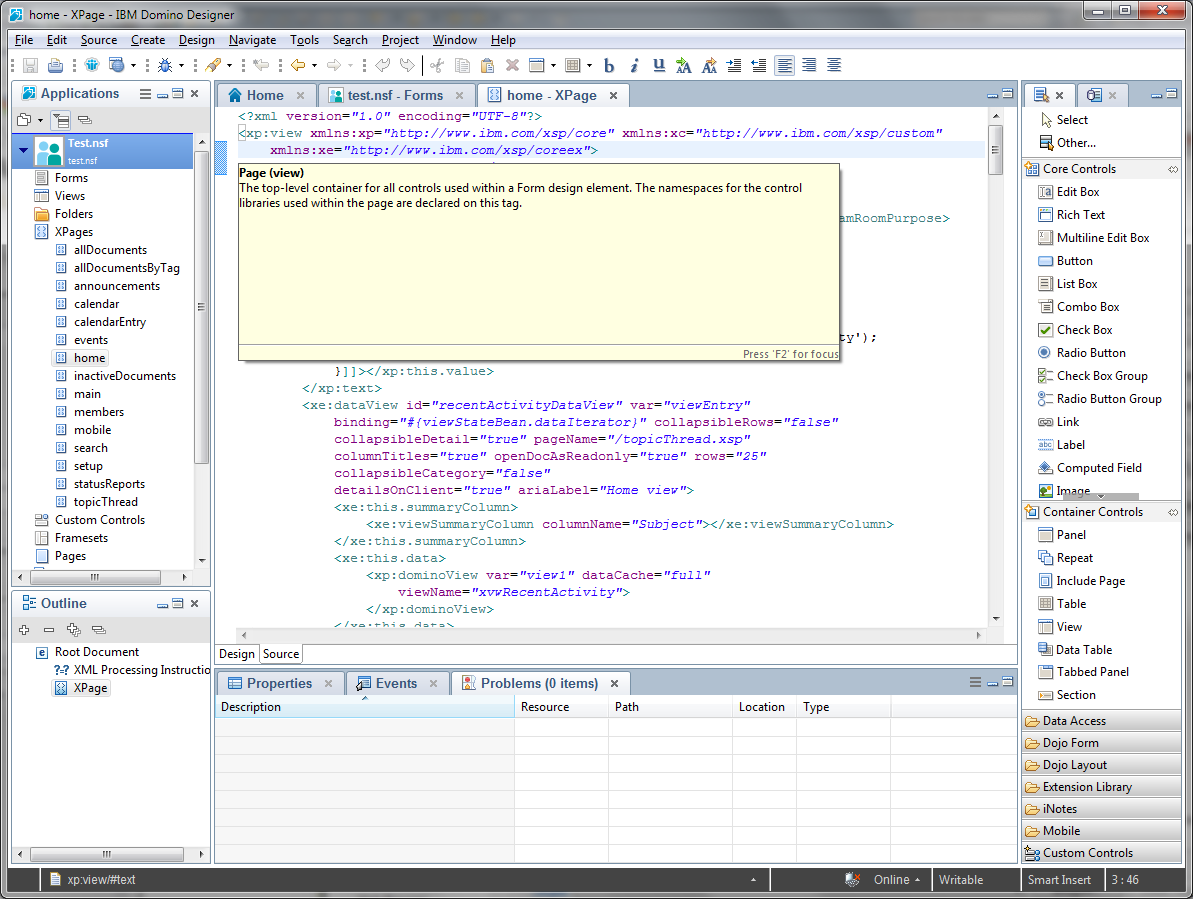
The goal is to have a full working Domino Designer, launched in Debug mode from eclipse.
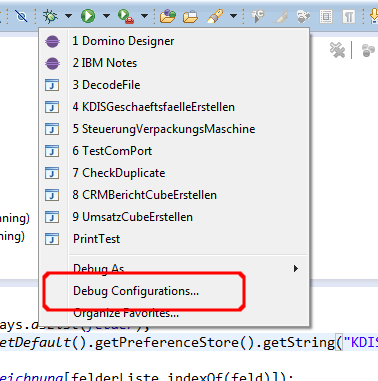
The first step is go to your eclipse and open the "Debug Configurations" dialog.
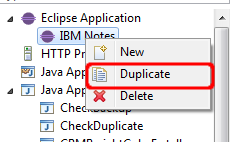
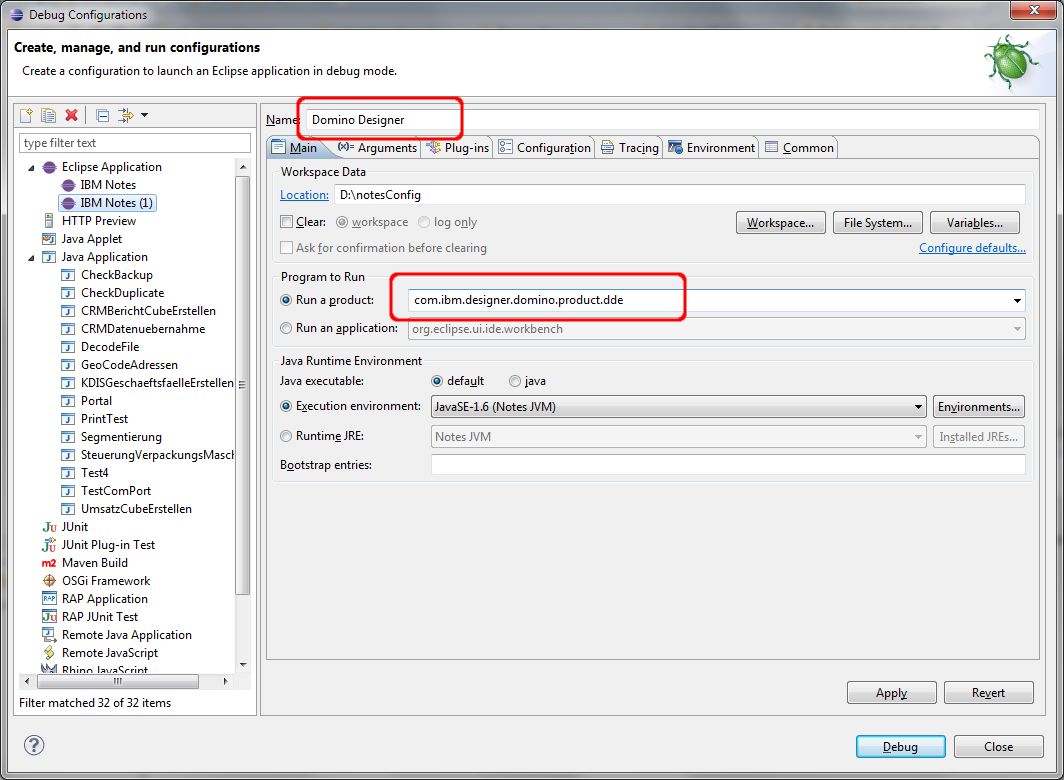
In there duplicate your existing notes launch config.
Then change the Name and the "run a product" field to Domino Designer and com.ibm.designer.domino.product.dde.
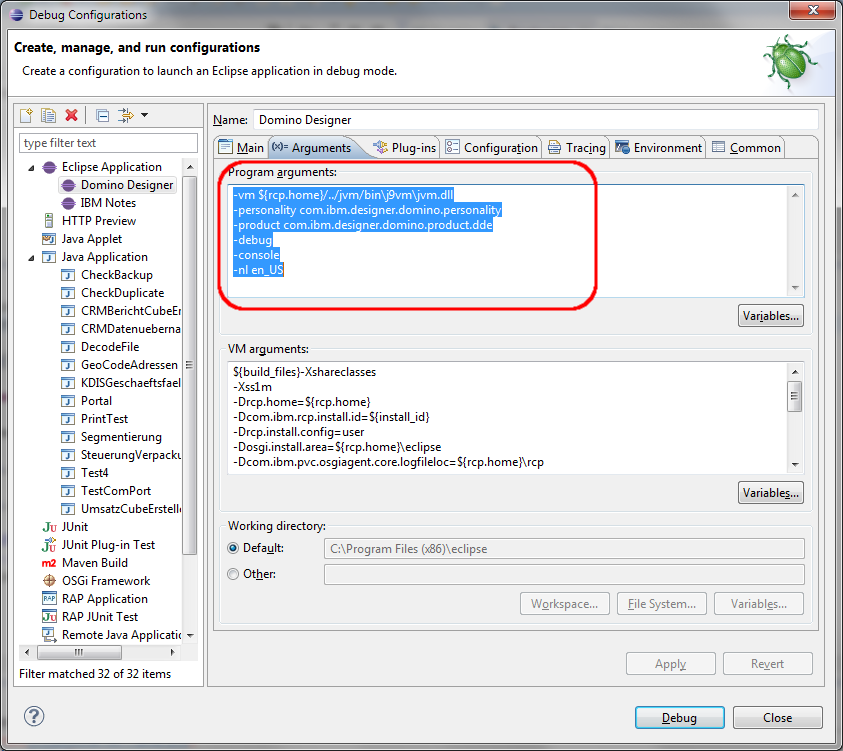
Switch to the "Arguments" Tab and change the Program arguments to
-vm ${rcp.home}/../jvm/bin\j9vm\jvm.dll
-personality com.ibm.designer.domino.personality
-product com.ibm.designer.domino.product.dde
-debug
-console
-nl en_US
Save your changes with the "Apply" button. Then click the debug button to launch Designer. Be sure that you have no open instance of Notes/Designer because only one instance can be open at the same time.
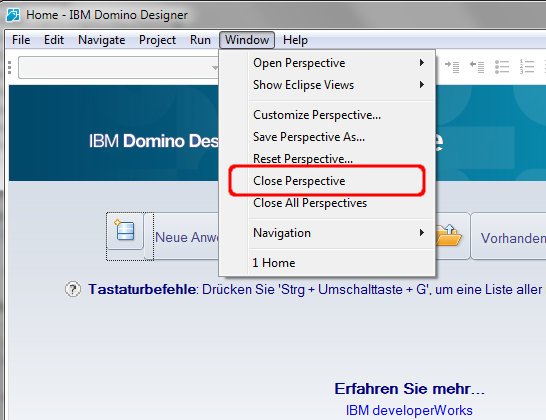
When everything works, you will get a designer window with a welcome screen. To close the welcome screen, choose "Close Perspective" from the Window menu.
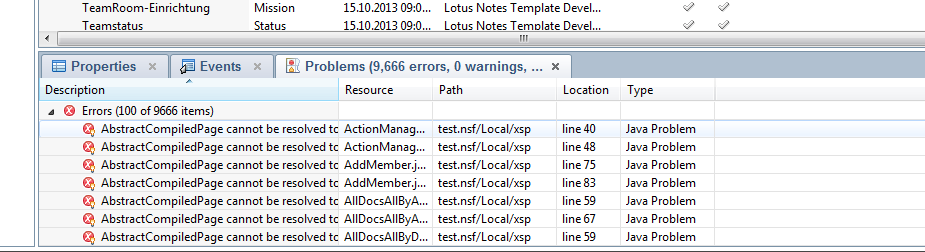
Then you should see your normal Designer UI. Maybe you get many error message in the Problem view that some Java elements cannot be resolved. No problem we will fix this in the next step.
Open the Preferences of Designer and navigate to "Plug-in Development" -> Target Platform. Change the location from "NotesProgDir\framework\eclipse" to "NotesProgDir\framework\rcp\eclipse". Click Apply and "Ok". Eclipse will reload the target platform.
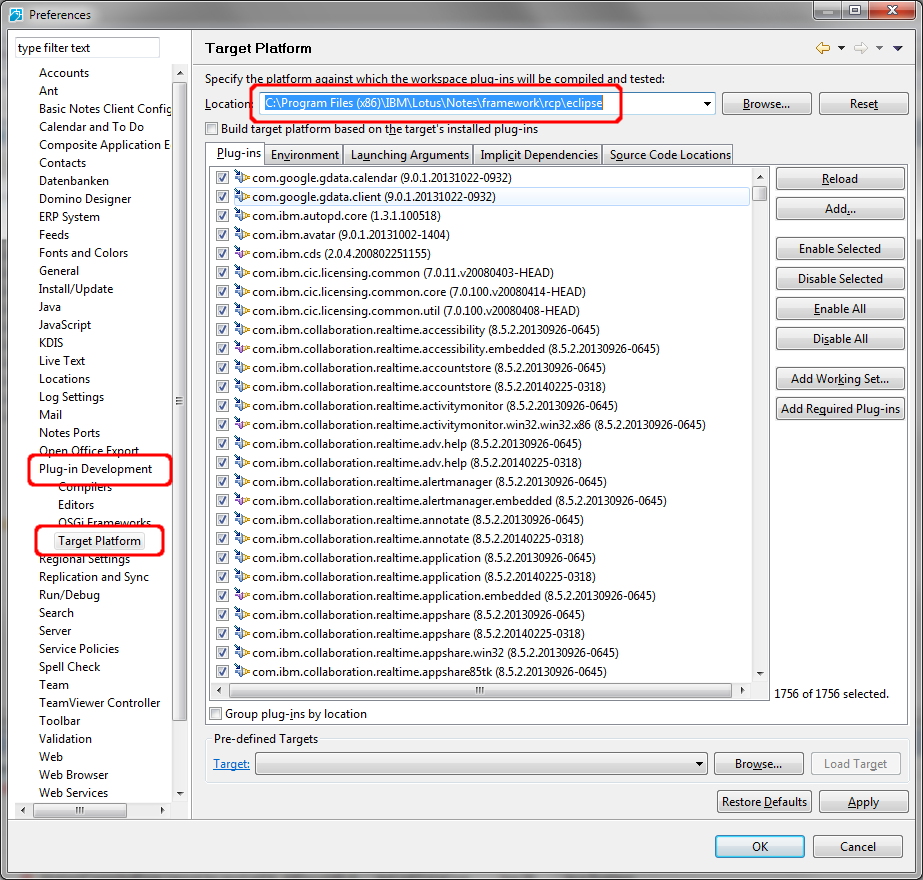
After reload all error message will be solved automatically in the background. Now you can try or debug your extensions in Designer.