Also Emfehlung von mir.
A blog about information technology. I am especially interested in Java, Eclipse RCP, IBM Notes Domino, Db2 and IBM i
Thursday, July 25, 2013
Urlaubslektüre Kluftingers erster Fall Milchgeld
Also Emfehlung von mir.
Wednesday, July 24, 2013
Holiday reading: Domino Administration Redbooks
It is always a good idea to use vacation to refresh the knowledge about your good old Domino infrastructure. So today my holiday reading is:
Domino Administration Redbook
Domino Server performance troubleshooting
Lotus Traveler Deployment Guide
Domino Administration Redbook
Domino Server performance troubleshooting
Lotus Traveler Deployment Guide
Tuesday, July 23, 2013
Holiday reading: TCP Congestion control
Have you ever want to know how TCP shares the bandwith between different connections. TCP has to choose which connections need which amount of bandwith and how to handle the latency requirements of different types of connections. So that your voip call will not become unreliable when you start a large download. There are different algorithms for this problem for example compound in Windows and cubic in Linux. But which of this algorithms is better for a given scenario in a heavy used network.
Here are my holiday readings regarding this topic:
Comparison of different congestion algorithms
Compound Congestion algorithm in detail
Remy a new high performance TCP algorithm
Here are my holiday readings regarding this topic:
Comparison of different congestion algorithms
Compound Congestion algorithm in detail
Remy a new high performance TCP algorithm
Saturday, July 20, 2013
First steps with the Java UCI API to access a starface PBX
In my last Starface related blog post i have shown how to configure the UCI API of the starface PBX in eclipse. Today i want to show you how to use the API to access data and functions in the starface PBX.
The first step to access data on the starface PBX is to create an UciProxy Object. The proxy object manages the connection to the PBX in the background. The proxy object is really handy, because it reestablish the connection automatically in the background if the connection to the PBX has been lost. The proxy object can use different transport methods to access the PBX. Here is an example for a connection without callback over HTTP.
Please replace "YOURSTARFACE", "0001" and "PASSWORD" with the host name, your user id and your password.
The next step is to create a so called "Request Object". Every access able function in the starface PBX is handled by this objects. Here is a list of all Request Objects and their use:
And here is the code to access your call list and write all inbound calls to the console.
So you can see that the UCI API is very easy to use and with only a few lines of code you can access many information's in your PBX which are normally only available in the web interface. In the next post in the starface series i will show you how to get notifications about events occurring in the PBX. So stay tuned.
The first step to access data on the starface PBX is to create an UciProxy Object. The proxy object manages the connection to the PBX in the background. The proxy object is really handy, because it reestablish the connection automatically in the background if the connection to the PBX has been lost. The proxy object can use different transport methods to access the PBX. Here is an example for a connection without callback over HTTP.
//Create a Ucpransportfactory to access the starface PBX over the HTTP protocol.
UcpTransportFactory ucpTransportFactory = new HttpUcpTransportFactory("YOURSTARFACE", 80, false);
//Create a UciProxyFactory with the above created Transportfactory.
UciProxyFactory uciProxyFactory = UciProxyFactory.createWithTransportFactory(ucpTransportFactory);
//Create a proxy with the given credentials
uciProxy = uciProxyFactory.createUciProxy("0001", "PASSWORD");
//Establish the connection to the starface PBX
uciProxy.connect();
Please replace "YOURSTARFACE", "0001" and "PASSWORD" with the host name, your user id and your password.
The next step is to create a so called "Request Object". Every access able function in the starface PBX is handled by this objects. Here is a list of all Request Objects and their use:
| Request Object | Use |
| UciCallListRequests | Get and manipulate the call list |
| UciCallRequests | start and end telephone calls or get the state of your telephone |
| UciFaxListRequests | Get and manipulate the list of your faxes or get the transmission report of a fax. |
| UciFaxRequests | Send new Faxes |
| UciFunctionKeyRequests | Get manipulate and press the function keys of your telephone |
| UciGroupRequests | Get and set Group settings |
| UciPhoneRequests | Manage your phones or set your primary phone |
| UciRedirectRequests | Change the redirect settings of your telephones |
| UciUserStateRequests | Get and set your avatar and manipulate your presence awareness status. |
| UciVoicemailListRequests | Get and manipulate the list of your voice mails |
And here is the code to access your call list and write all inbound calls to the console.
// Get a CallListRequest Object to access the calllist
UciCallListRequests requests = uciProxy.getRequests(UciCallListRequests.class);
// Get the inbound calllist for the lastday with no group calls,
// ordered by startTime Ascending. If there are more then 1000
// entries only the the first 1000 will be retrieved.
CallList callList = requests.getCallList(new Date(), new Date(new Date().getTime() - 86400000),
CallListEntryDirection.INBOUND, null, GroupRestriction.NON_GROUP,
CallListEntryProperties.startTime, OrderDirection.ASCENDING, 0, 1000);
// Create date and timeformater
DateFormat df = SimpleDateFormat.getDateInstance();
DateFormat tf = SimpleDateFormat.getTimeInstance();
// Iterate through the callist entries and print every entry to
// standard out.
for (CallListEntry entry : callList.getEntries()) {
System.out.println(entry.getId() + "/" + entry.getCalledNumber() + "/" + entry.getCallerNumber() + "/"
+ df.format(entry.getStartTime()) + " " + tf.format(entry.getStartTime()) + "/"
+ entry.getDuration());
}
So you can see that the UCI API is very easy to use and with only a few lines of code you can access many information's in your PBX which are normally only available in the web interface. In the next post in the starface series i will show you how to get notifications about events occurring in the PBX. So stay tuned.
Saturday, July 6, 2013
Migrate a Twinax Console to a Lan Console on IBM i.
I do not know if i was the last on earth who was still using a Twinax Console to operate an i/5, but today i have migrated succesfully our twinax console to a LAN Console. I had to do the following steps for the migration:
Locate the LAN Console Port on your system. For our Modell 520 it is the T5 port. If you are unsure check the Power Systems info center for informations how to locate the Lan Console port. Check with wrkhdwrsc *cmn and wrkcfgsts *lin that there is no active line description configured for this ethernet port. The Lan Console port cannot be shared with other Ethernet lines on your system.
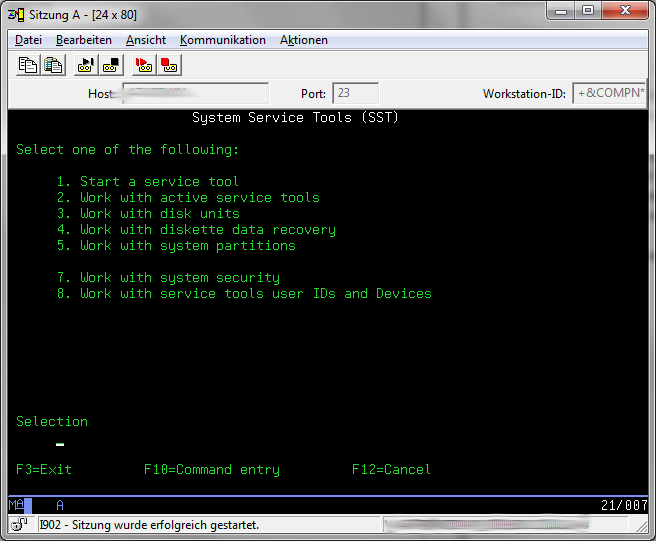
Then sign in to the System Service Tools with strsst
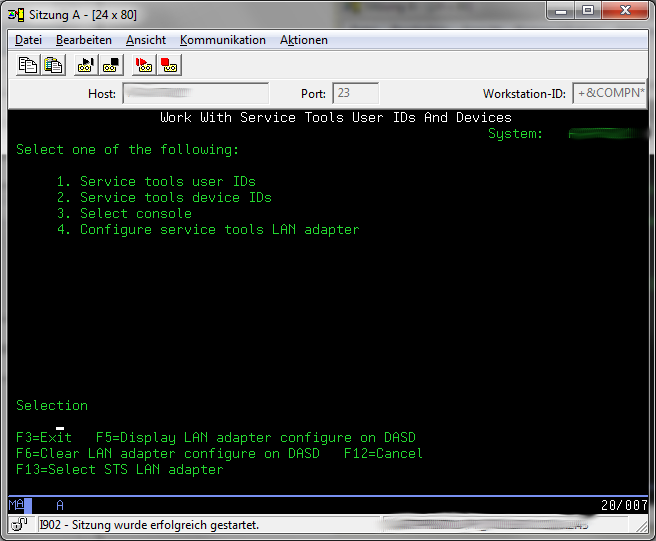
Choose Option 8 "work with service tools user IDs and Devices"
Choose option 4 "Configure service tools LAN adapter"
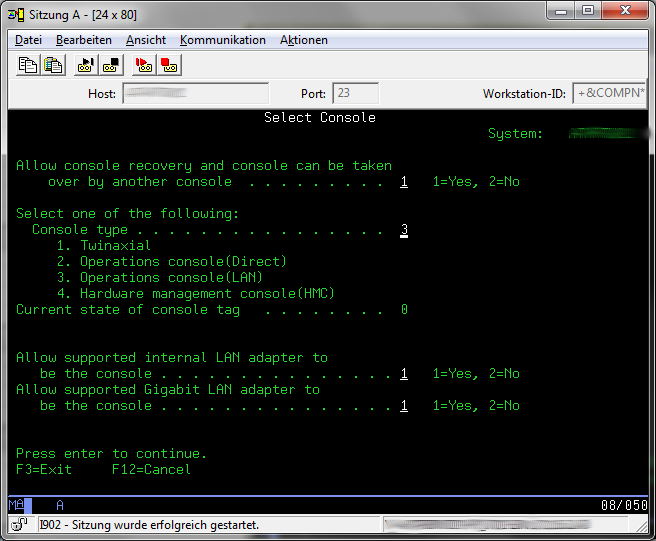
Change all values on the "select console" so that the match the screenshot and the press "Enter" to continue.
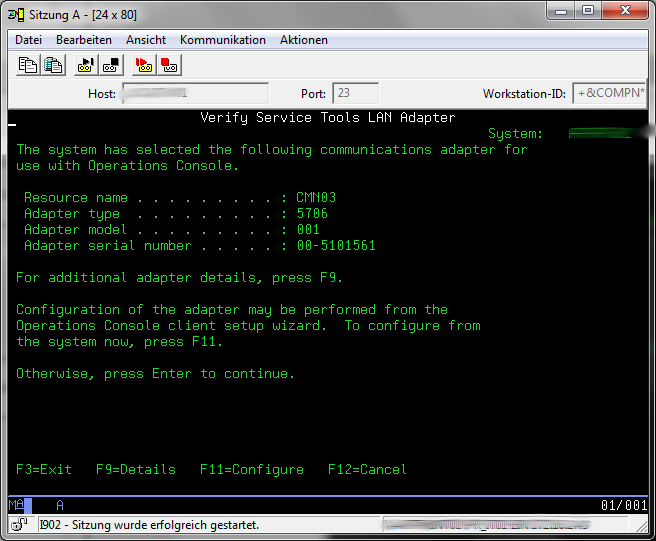
Press F11 to go to configure your new service LAN Adapter.
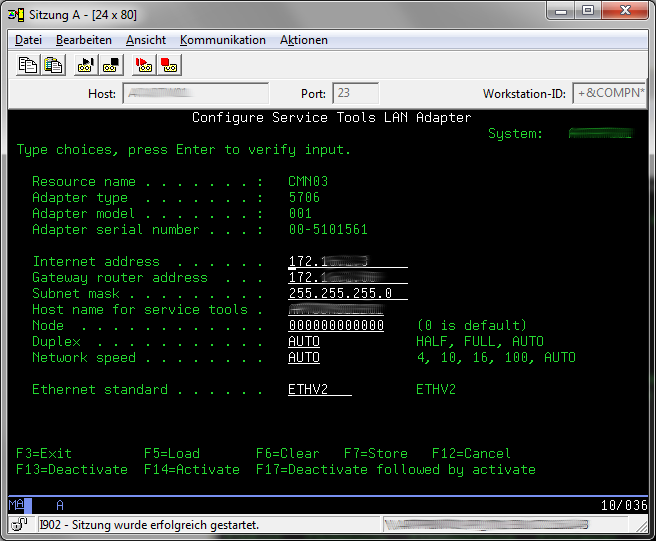
Fill in a static IP Address for the LAN Adapter and the default gateway and subnet mask matching your LAN configuration. As an Hostname for service tools you can use every symbolic name you want for example "SYSCONSOLE1". This IP address habe to be unused and must not match any IP Address of other servers in your network. Then press "F7" to store your configuration and go back with multiple "F3 presses to the start screen of the SST.
Normally you have to make an IPL to activate your new console configuration. But if you are not able to IPL your machine you can try the following steps to activate the LAN Console without an IPL.
Start SST with STRSST if you are not already in the SST Screen.
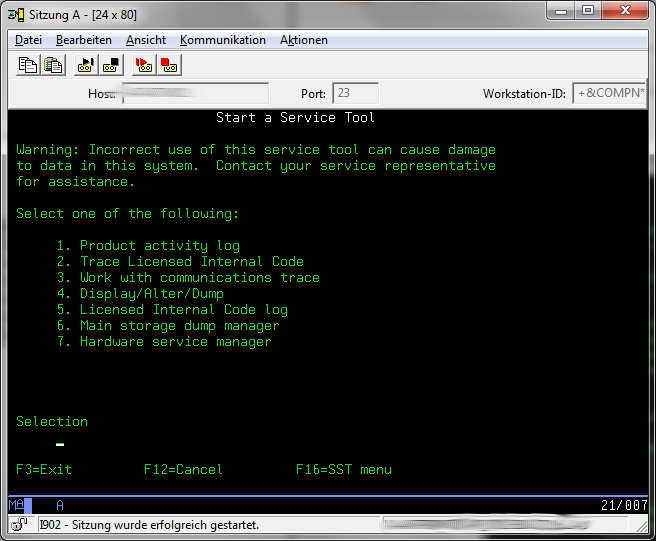
Select Option 1 "Start a service tool"
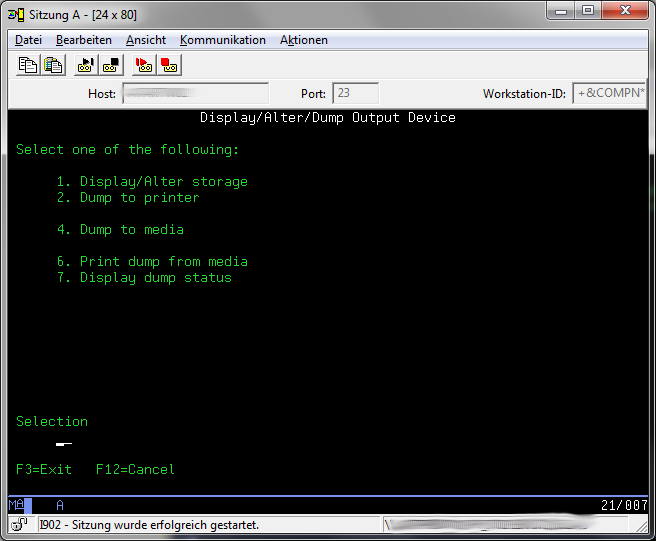
Select Option 4 "Display/Alter/Dump"
Select Option 1 "Display/Alter storage"
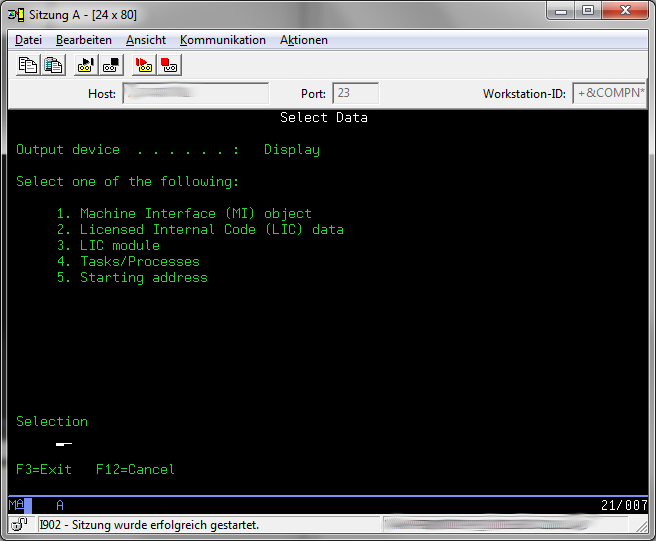
Select Option 2 "Licensed Internal Code (LIC) data"
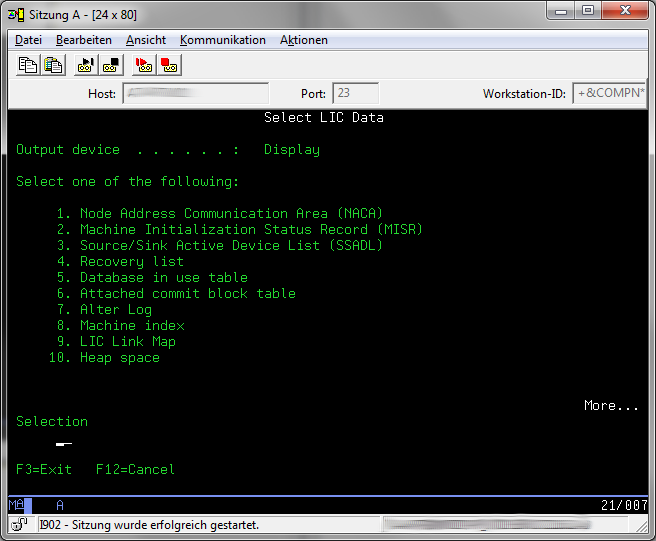
Press Page Down to go to the second menu of "Select Lic Data".
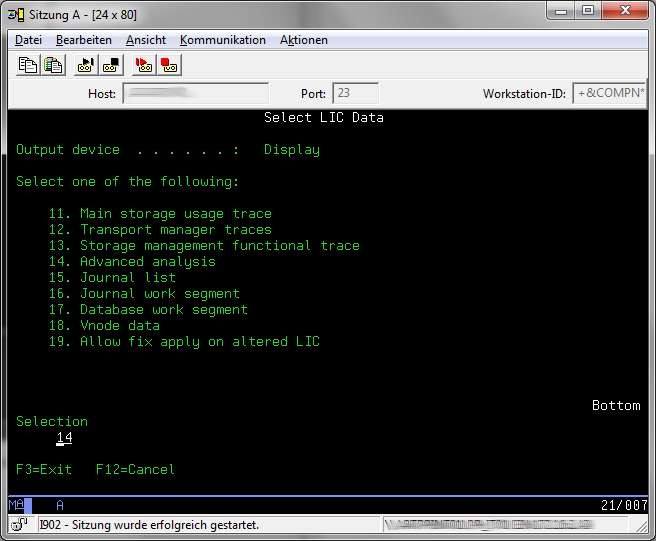
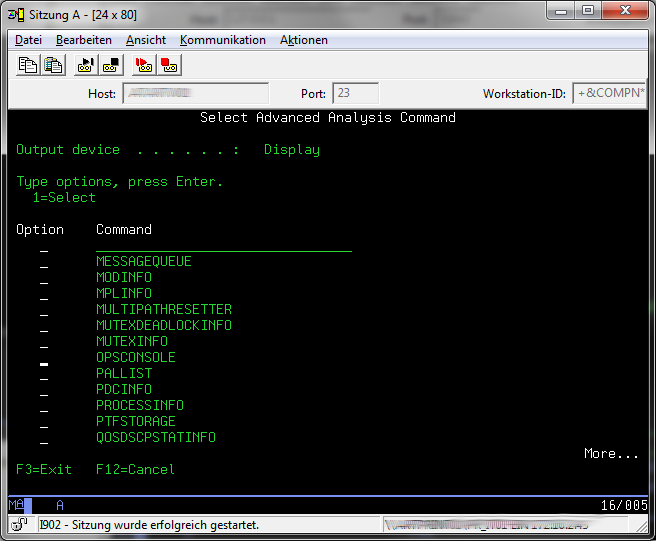
Select Otion 14 "Advanced Analysis" and page down in the List of the Macros till you see the "OPCONSOLE" macro.
Select the "OPCONSOLE" macro with "1"
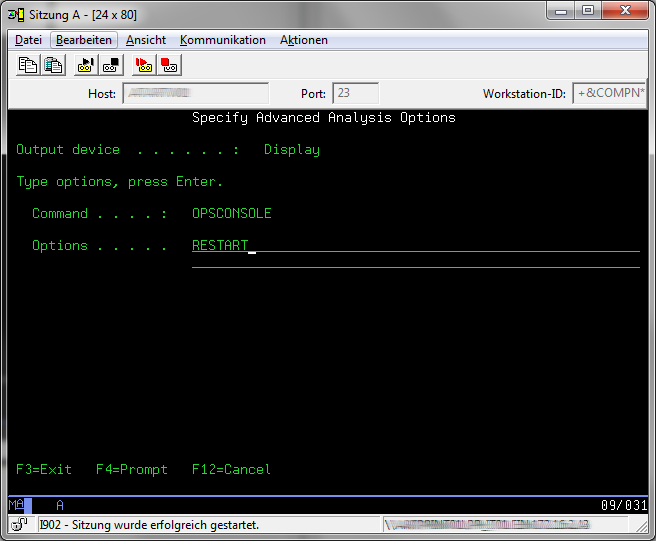
Fill in "RESTART" as the option and press enter to run the macro. After that you can leave the SST.
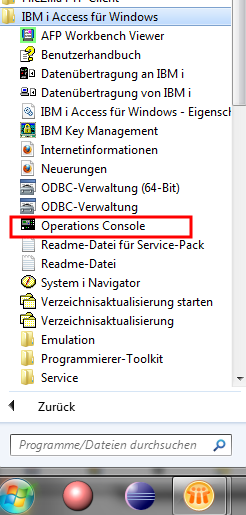
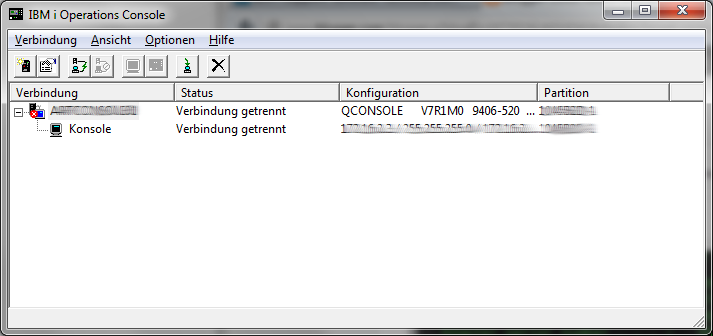
Now you can try your new LAN console on your local workstation. Start the "Operations Console" from the i Access start menu.
When everything is configured correctly the operations console will discover the console port automatically and you can connect to the console of your system.
After the connection has been established you have to sign in with a SST user. Be aware that the username and password is case sensitive.
Locate the LAN Console Port on your system. For our Modell 520 it is the T5 port. If you are unsure check the Power Systems info center for informations how to locate the Lan Console port. Check with wrkhdwrsc *cmn and wrkcfgsts *lin that there is no active line description configured for this ethernet port. The Lan Console port cannot be shared with other Ethernet lines on your system.
Then sign in to the System Service Tools with strsst
Choose Option 8 "work with service tools user IDs and Devices"
Choose option 4 "Configure service tools LAN adapter"
Change all values on the "select console" so that the match the screenshot and the press "Enter" to continue.
Press F11 to go to configure your new service LAN Adapter.
Fill in a static IP Address for the LAN Adapter and the default gateway and subnet mask matching your LAN configuration. As an Hostname for service tools you can use every symbolic name you want for example "SYSCONSOLE1". This IP address habe to be unused and must not match any IP Address of other servers in your network. Then press "F7" to store your configuration and go back with multiple "F3 presses to the start screen of the SST.
Normally you have to make an IPL to activate your new console configuration. But if you are not able to IPL your machine you can try the following steps to activate the LAN Console without an IPL.
Start SST with STRSST if you are not already in the SST Screen.
Select Option 1 "Start a service tool"
Select Option 4 "Display/Alter/Dump"
Select Option 1 "Display/Alter storage"
Select Option 2 "Licensed Internal Code (LIC) data"
Press Page Down to go to the second menu of "Select Lic Data".
Select Otion 14 "Advanced Analysis" and page down in the List of the Macros till you see the "OPCONSOLE" macro.
Select the "OPCONSOLE" macro with "1"
Fill in "RESTART" as the option and press enter to run the macro. After that you can leave the SST.
Now you can try your new LAN console on your local workstation. Start the "Operations Console" from the i Access start menu.
When everything is configured correctly the operations console will discover the console port automatically and you can connect to the console of your system.
After the connection has been established you have to sign in with a SST user. Be aware that the username and password is case sensitive.
Friday, June 28, 2013
Rational Developer for IBM i 9 is available
A new version of the Rational Developer for i is available. RDI in the version 9 is the new name for a tool which was also known as WDSC, RDP and many more other names. RDI is an eclipse based development tool for software development on Power systems running i aka known as AS/400, iseries, system i. With RDI 9 some long time awaited improvements have been made by Rational. The eclipse base has been upgraded from 3.6.x to the 4.2.2 codebase. So you have a much improved JDT (Java development tool) and you are able to install all the cool plugins which comes with eclipse 4.2.2 in your Rational Developer. The special plugins like the System i enabled RSE (Remote System Explorer) LPEX (Editor for RPG and Cobol) have got enhancements too. The Outline in RPG should show the informations more detailed and Rational promises that many functions will give a better performance. This will be much appreciated, because performance is one of the weak points of the old RDI versions.
RDI comes in three versions:
Rational Developer for i RPG and Cobol Tools
This is the tool for the classic i Developer who wants to build green screen applications with RPG and Cobol. Also included is a graphical Version of SDA and plugins to access the db2 on i. There is no support for Web development in this version from Rational, although you can add open source plugins from Eclipse to fill the gap.
Rational Developer for i RPG and Colbol + Modernization Tools
This version has all of the Basis version with many additional plugins to build Web Applications on the Websphere software stack from IBM. Many of this plugins are very complex and need highly trained developer on this tools to be productive. The are very good for big multi tier systems, but maybe to complicated for small projects For smaller projects the base version with added open source plugins from eclipse are an interesting alternative.
Also included in this version is the new IBM Worklight Studio 6.0 to build mobile applications. The strange thing is that applications which are built with IBM Worklight Studio 6.0 can not be deployed to the i. You have to deploy them to a Windows or Unix Worklight server which can then access the db/2 on the i.
Rational Developer for i RPG and COBOL + Modernization Tools, EGL Edition v9.0
This is the replacement for IBM Rational Developer for i for SOA Construction. I have no informations about this version, but IBM has promised for such a long time that EGL has a bright future with no visible results, that i can not believe in this future anymore.
*Updated*You can find additional informations to the new versions on http://www-03.ibm.com/software/products/us/en/dev-ibm-i. or in the announcement. Das Informationcenter wurde ebenfalls bereits für die Version 9 aktualisert.
Unfortunatly up to now there is no Tial version of 9 available, but i have already contacted a sales representative of IBM when and where a Trial for this version will be available. *Updated* Eric Simpson has blogged about RDI and at the end of his post is a tutorial how to install the trial with the installation manager manually.
RDI comes in three versions:
Rational Developer for i RPG and Cobol Tools
This is the tool for the classic i Developer who wants to build green screen applications with RPG and Cobol. Also included is a graphical Version of SDA and plugins to access the db2 on i. There is no support for Web development in this version from Rational, although you can add open source plugins from Eclipse to fill the gap.
Rational Developer for i RPG and Colbol + Modernization Tools
This version has all of the Basis version with many additional plugins to build Web Applications on the Websphere software stack from IBM. Many of this plugins are very complex and need highly trained developer on this tools to be productive. The are very good for big multi tier systems, but maybe to complicated for small projects For smaller projects the base version with added open source plugins from eclipse are an interesting alternative.
Also included in this version is the new IBM Worklight Studio 6.0 to build mobile applications. The strange thing is that applications which are built with IBM Worklight Studio 6.0 can not be deployed to the i. You have to deploy them to a Windows or Unix Worklight server which can then access the db/2 on the i.
Rational Developer for i RPG and COBOL + Modernization Tools, EGL Edition v9.0
*Updated*You can find additional informations to the new versions on http://www-03.ibm.com/software/products/us/en/dev-ibm-i. or in the announcement. Das Informationcenter wurde ebenfalls bereits für die Version 9 aktualisert.
Unfortunatly up to now there is no Tial version of 9 available, but i have already contacted a sales representative of IBM when and where a Trial for this version will be available. *Updated* Eric Simpson has blogged about RDI and at the end of his post is a tutorial how to install the trial with the installation manager manually.
Thursday, June 27, 2013
Other useful Display filters in Wireshark
In one of my last posts i have talked about how to trace DHCP communication in Wireshark. Today i want to show some other very usefull Displayfilters in Wireshark.
ip.addr==xxx.xxx.xxx.xxx
Display all IP traffic coming from or going to the specified IP Address.
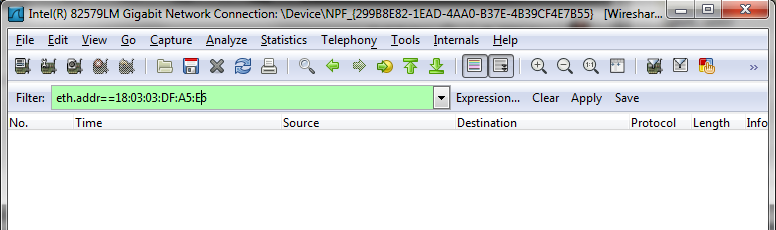
eth.addr==xx:xx:xx:xx:xx:xx
Display all Network traffice coming from or going to the specified Mac Address.
!arp
Hide Address Resolution Protocol packets to prevent the flood of them in your communication trace.
http.set_cookie
See all packets in the communication trace which sets cookies.
http.cookie
See all packets in the communication trace which transport cookies to remote server.
You can replace the "==" with contains to search for a part of an address. For example if you want the whole traffice from and to 10.0.10.x then use ip.addr contains 10.0.10.
It is possible to combine filters with the logic operators "and, or, xor, not" For xample "ip.addr==10.0.0.10 and not eth.addr==45:20:24:ff:5a:18" checks if there are packets with ip address 10.0.0.10 which do not come from the correct network adapter.
You can specify the protocol like "smb","http" or "smtp"... of the traffic you want to analyze and all other protocols will be hidden in your trace.
A very good cheat sheet is available from packetlife.net
Wednesday, June 26, 2013
Eclipse 4.3 Kepler has been released.
Today the Eclipse Foundation has released Eclipse 4.3 (Kepler). Eclipse 4.3 is really a step in the right direction after the little bit disappointing 4.2 Version. Especially the performance of many functions like the switch to other editor parts has improved. Many other projects like WTP, RAP, BIRT has although seen great new features. So i really recommend, that every User of Eclipse 4.2 should upgrade his installation to 4.3. Users of the older 3.x code stream should wait till the first Service Release of 4.3 which i expect in September.
You can find all new features and bugfixes with screenshots in the "What's new" chapters of the online help of eclipse.
Subscribe to:
Posts (Atom)
ad